


User Manual
Backup
Backing up is essential to keeping your OnSong library safe and ready to perform at a moment's notice. This screen is used to manually create backups, or to schedule backups to occur automatically on a schedule while the app is running. Once you've configured your backup strategy, tap Close to save your changes, or tap on Backup to save your backup file manually.
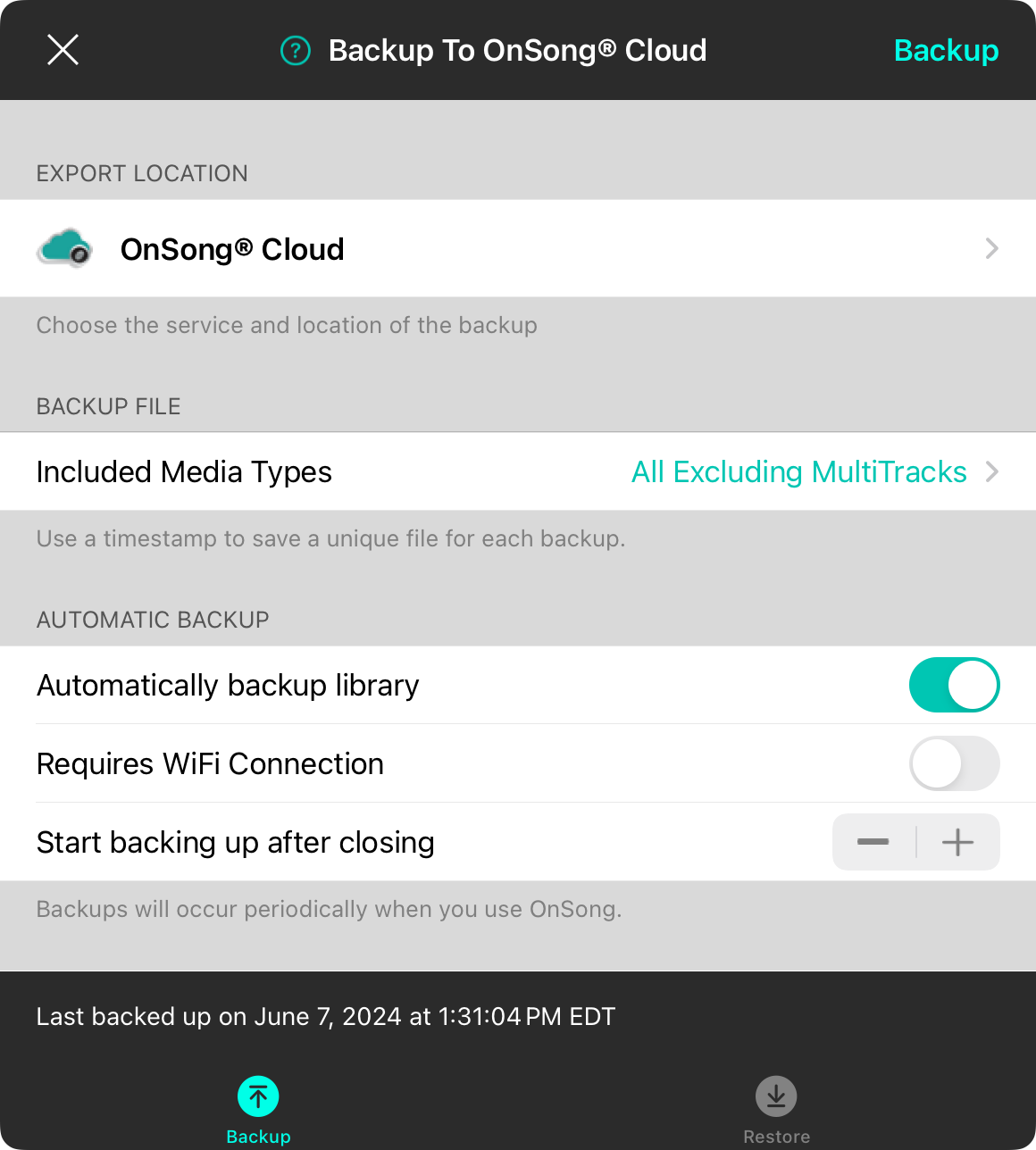
Export Location
The export location section lets you choose where OnSong should save the backup file. Tap on this row to choose a service and location where your backup file will be stored.
OnSong® Cloud is enabled by default when you are signed into your OnSong® account. If you are not signed in, the backup is saved on the device in File Sharing.
Backup File
The backup file section lets you configure a file name to use.
Filename
The first row lets you enter a name. By default, this is set to "OnSong" or the name of your library. The ".backup" file extension is automatically added to the filename. Note: This is not available when using OnSong® Cloud as a backup location.
Append a timestamp to the filename
By default, OnSong does not append a timestamp. If enabled, timestamps are appended to the file name as a number that includes the year, month, day, hour, and minute such as 201809091045. Appending the timestamp will create a new backup file every time a backup is saved. Omitting the timestamp will overwrite the backup file with the latest version. Note: This is not available when using OnSong® Cloud as a backup location.
Included Media Types
Backup files contain your entire library including songs, sets, books, settings, and styles. However some media types can be quite large (we're looking at you, MultiTracks). You can use this setting to determine media types that you don't want to include in the backup file to make it more manageable.
Automatic Backup
Backup files are great, as long as you remember to make them. You can configure how the OnSong® app makes backup files without user interaction.
Automatically Backup Library
OnSong automatically backs up your library when you close the app. You can enable and disable automatic backup using this switch.
Requires WiFi Connection
Backup files can be quite large. If you pay for cellular data, you may not want the OnSong® app to upload backup files when WiFi is not available. Turn this on if you would like to skip the backup process if you are not connected to a WiFi network. The default setting is off.
Backup Frequency
Use this stepper control configure backing up when the app is closed or frequencies including hourly, daily, weekly, or monthly.
If both automatic backup and appending timestamps to the filename are enabled, an alert will appear with a recommendation to disable timestamps. This is because this configuration can create multiple files that take up a lot of space. You can be given the option to disable the timestamp.
Manual Backup Button
Tap on the button in the upper right corner to start backing up manually.
Backup Status
At the bottom of the screen is a status bar that will show when the last backup was saved. If a backup is in progress, it will display the progress for both creating the backup file and exporting it to the service location.
While a backup is occurring, the Backup button in the upper right corner will become a Stop button. Tapping on this will halt the creation of the backup file, exporting to the service, and close the backup screen. OnSong will continue running in the background while a backup operation is in progress.


